

Menu

Wananga Landing
Profile image
Login or tool

Reading & Writing Support

05 October 2026

Are you struggling with reading, understanding, or remembering your course material? If you need support, you can sign up for TextHelp Read & Write. This support software is free for all UC students to use. It can help you personalise your learning and get back on track with your studies. Find out about TextHelp Read & Write.

HOW TO APPLY
Take charge and boost your studies with TextHelp Read&Write
 

Are you struggling with reading, understanding and remembering your course material? Are you feeling a bit overwhelmed trying to balance your studies, completing assignments, preparing for exams and recording references for research projects?

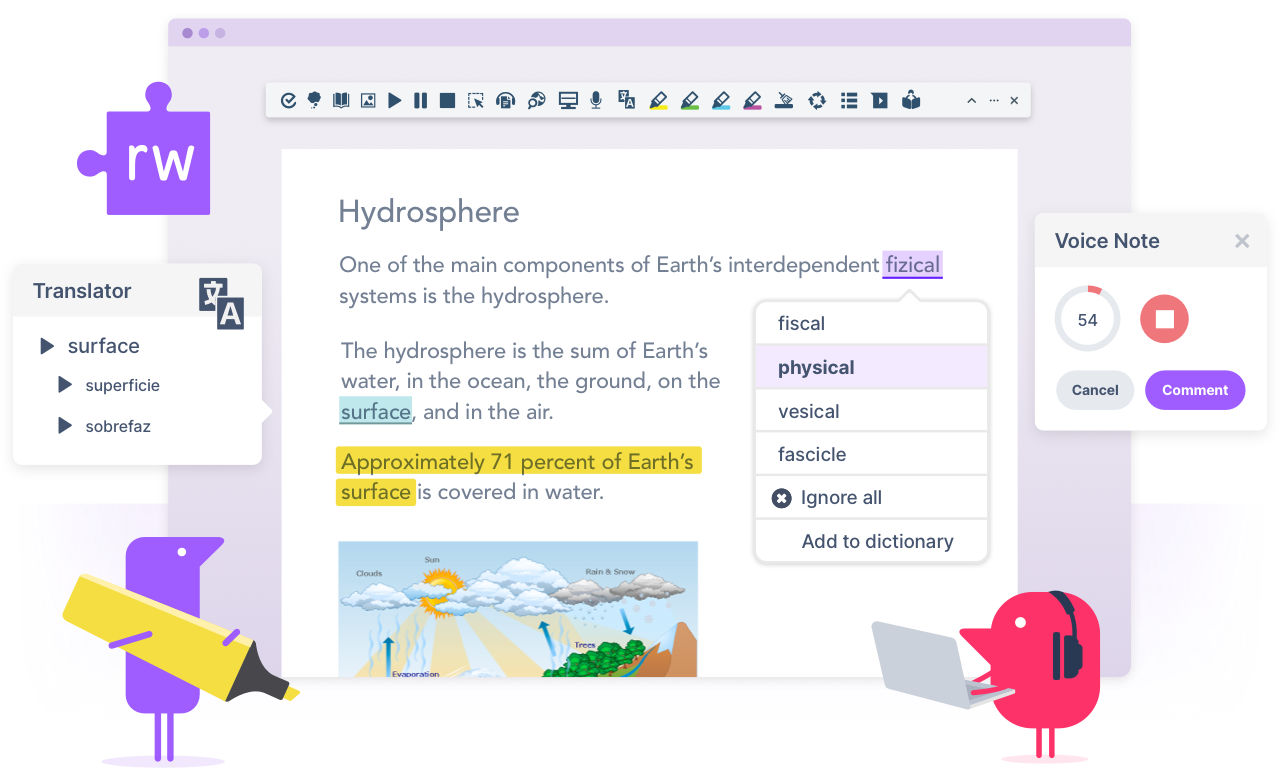
If you need support with your reading, writing and research, you can sign up for TextHelp Read & Write. This support software is free for all UC students to use, and can help you to personalise your learning and get back on track with your studies. It can help you to:

  • Hear words, passages or whole documents read out loud with easy-to-follow dual colour highlighting
  • Check grammar, spelling and pronunciation
  • Use dictionaries to help with definitions of difficult words
  • Highlight and collect text in documents or the web and auto-create bibliographies
  • Convert selected text into an audio file
  • Convert speech into text
  • Remove ads from webpages that can be distracting
  • Build a vocabulary list

By clicking Read&Write, you can enrol in a hands-on training session, or you can email assistech@canterbury.ac.nz and request for a 1-on-1 session or you can follow these steps to download the software:

For the Desktop version of Read&Write

To add the Read&Write extension to Google Chrome

  • Open Google Chrome
  • Search for Chrome Web Store
  • Type Read&Write in the Search box, add and pin it to the address bar
  • If prompted, use your UC email/gmail to sign-in (ex. xxx@uclive.ac.nz or xxx@pg.canterbury

Install MS Edge Read&Write Addon

  • Open Microsoft Store in Microsoft Edge
  • Click on Microsoft Edge Addons
  • Search for Read&Write, add and pin it.
  • If prompted, sign up using your UC email (ex. xxx@uclive.ac.nz or xxx@pg.canterbury.ac.nz ) to sign up

For more information, go to TextHelp Video Tours, or browse the guides below.

For assistance, email assistech@canterbury.ac.nz

Privacy Preferences

By clicking "Accept All Cookies", you agree to the storing of cookies on your device to enhance site navigation, analyse site usage, and assist in our marketing efforts.
