

Menu

Wananga Landing
Profile image
Topic

connectUC Agent Portal

07 May 2026

Stay informed, access helpful guides, and explore new features designed to make your experience smoother and more efficient.

HOW TO APPLY

We are currently implementing some changes* designed to improve the agent experience with connectUC. These updates will provide greater clarity in managing student applications, making the process more streamlined and transparent for our partners.

*Please note some of these changes do not affect Study Abroad agents as Study Abroad applications go through a different process. 

Change of Application (CoA) Action Added

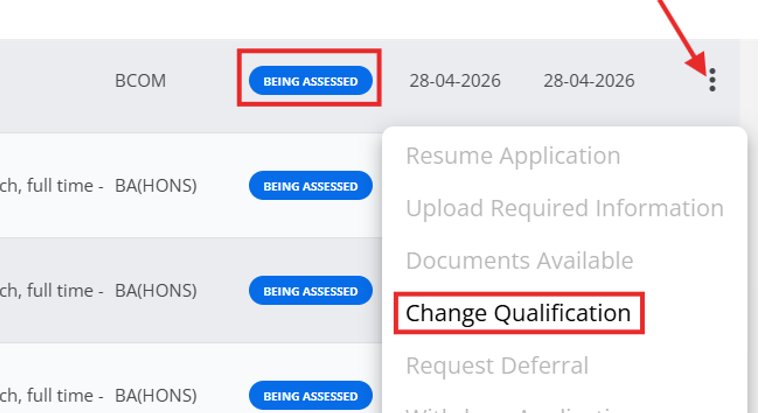
Our agents can now request a change of qualifications and subjects (or major or endorsement) for applications that have already been submitted via connectUC if a full Offer of Place has not been generated yet. 

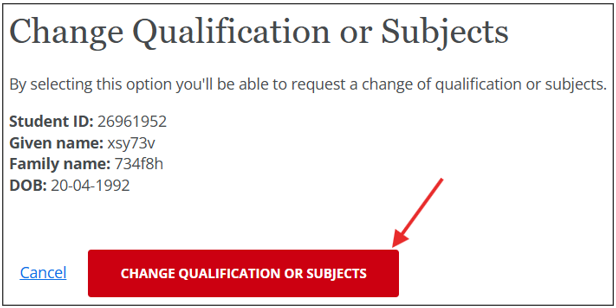
This CoA request is for the same application year only. To start the CoA, select the Change Qualification action.


"Change Qualification or Subjects"

Click the "Change Qualification or Subjects" button. 

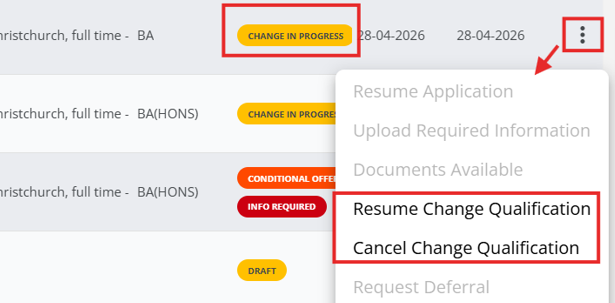
(Note: the status on the dashboard is now showing "Change in Progress" in yellow to indicate you have started the request for this application.)  


Choose Qualification or Subjects

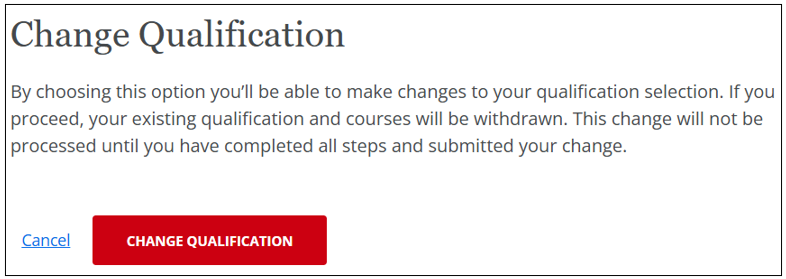
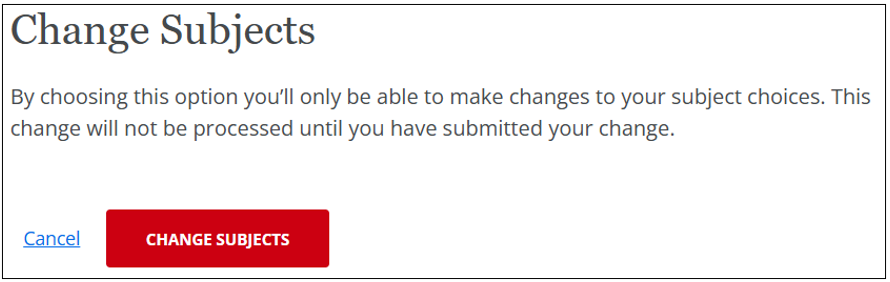
Select the relevant radio button, either "Change Qualification" or "Change Subjects" and click "Save and Continue." Depending on what you have chosen, one of the screens will display. 

Click the red Change button to confirm your choice. 

Select the new qualification or subjects, complete all relevant fields and click "Save and Continue."


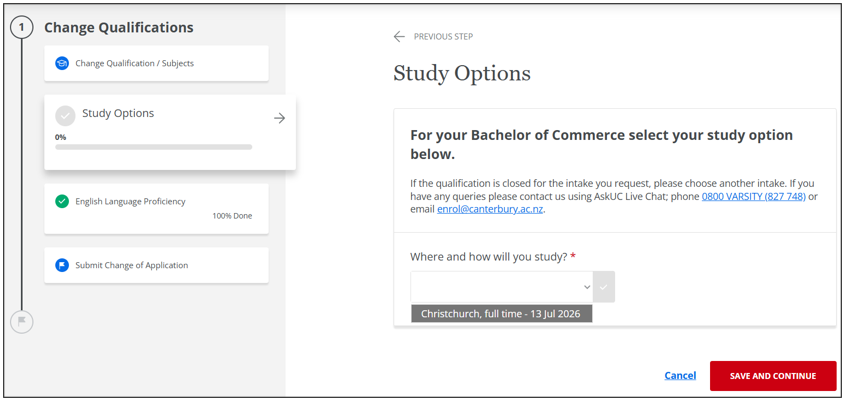
Study Options for "Change Qualification"

Select from the dropdown list where and how your student will study and click "Save and Continue."

(Note: if you are changing Subjects then Study Options do not need to be updated and will remain at 100% complete. Jump to the final tile to submit your changes in this case.)

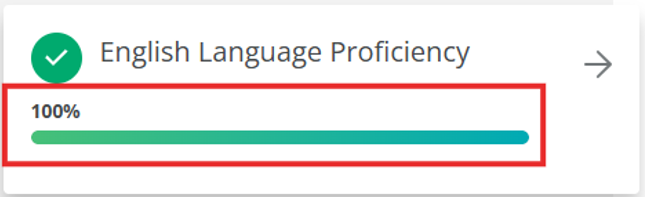
The English Language Proficiency info is retained and the tile is at 100%. Click "Save and Continue."


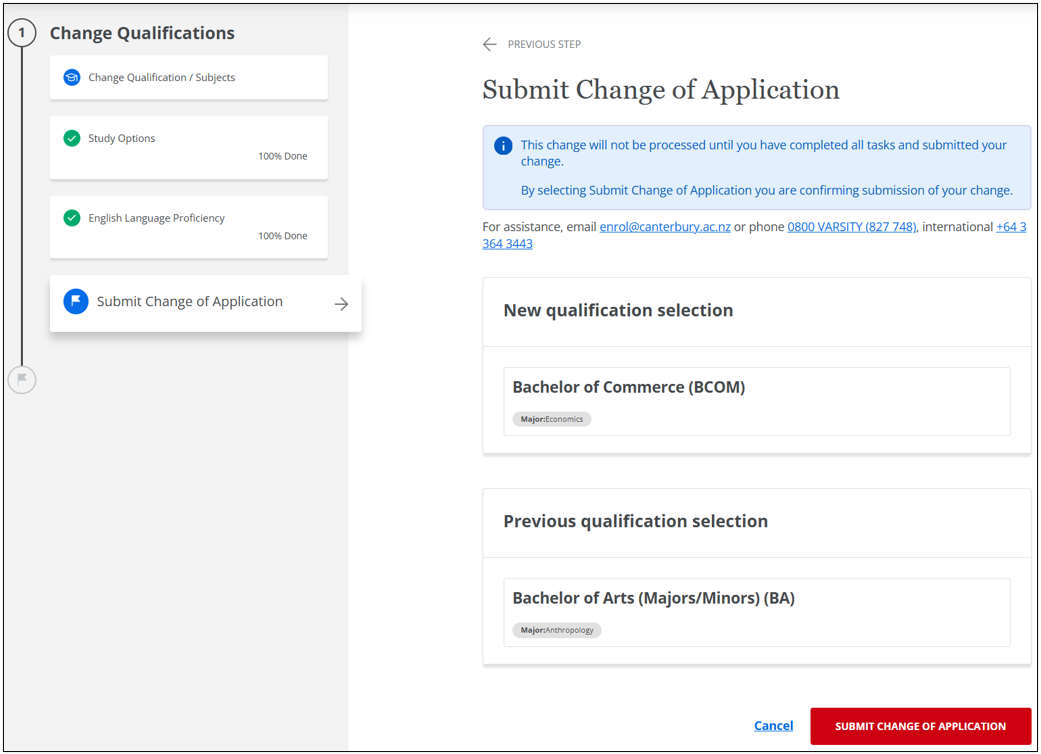
"Submit Change of Application" Screen

Check the new qualification (or subject) selection is correct then click "Submit Change of Application."

You are returned to the dashboard and a green success message displays at the bottom of the screen - you can click the X to close the message. It may take a few seconds for the application fields to update. 

The application is now "Being Assessed." Email notifications are sent to both agent and student to confirm a CoA has been submitted for a change of qualification (but not for a change of subjects).


Resume or cancel "Change of Application"

If you have started but not completed the CoA for any reason, resume or cancel the CoA from the dashboard. 

Check if the status of the application still shows "Change in Progress." Select either "Resume Change Qualification" or "Cancel Change Qualification" and complete this action. 

If you choose to "Cancel Change Qualification," you are returned to the dashboard and the application is returned to the previous status. 


Search Box Update

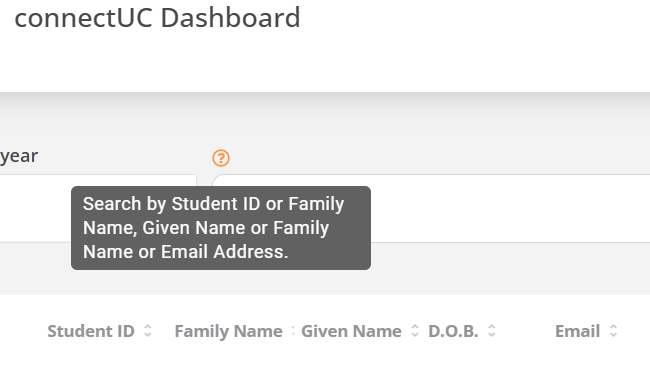
The search functionality has been simplified into a single search bar which now allows agents to search by "Student ID," "Family Name, Given Name," "Family Name," or "Email Address."


"Request Deferral" action added 

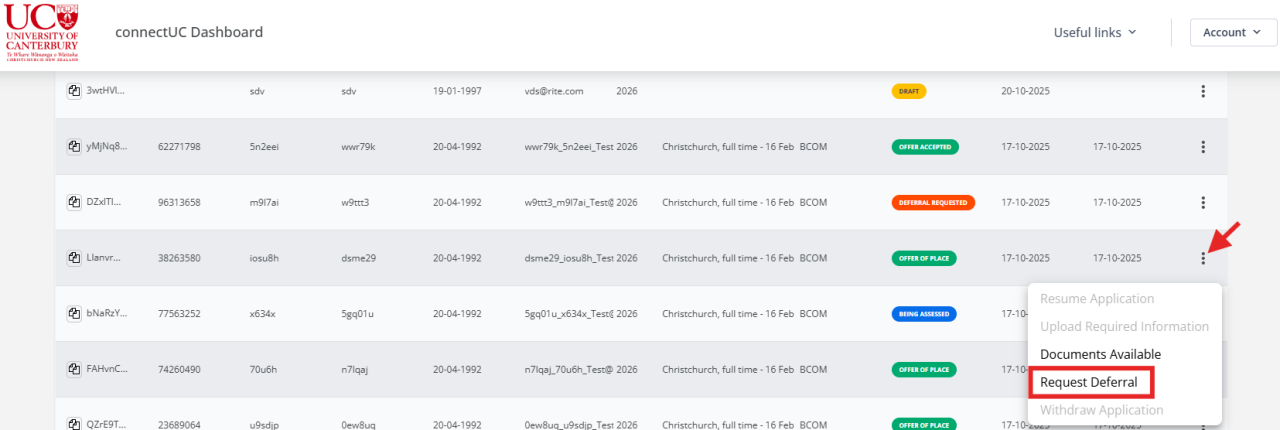
Our recruitment agents can request deferral via connectUC if a student has received BUT NOT ACCEPTED or DECLINED an offer and they have no previous deferral request that has been declined.

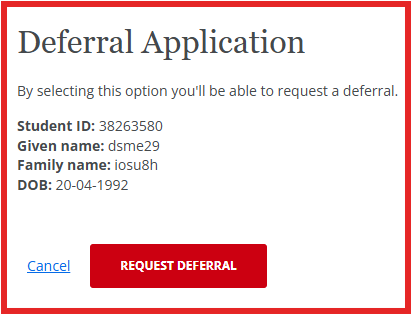
When the Request Deferral action is selected from the Actions Dropdown Menu, you will see the "Deferral Application" pop-up message. 

Click the Request Deferral button to continue with your request.


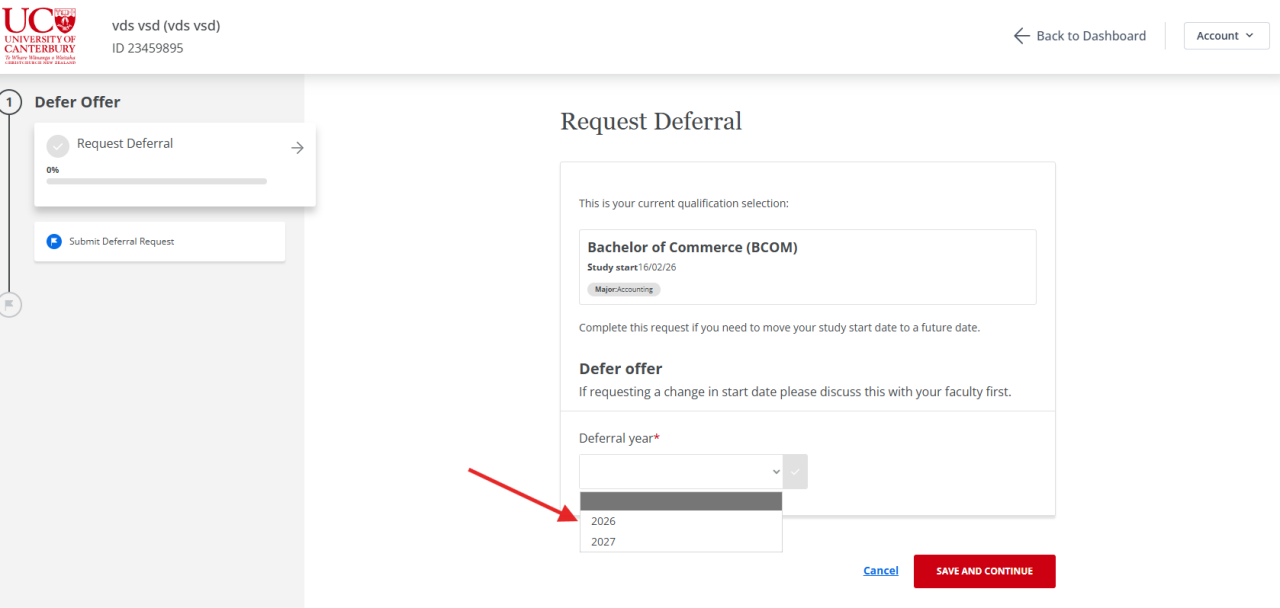
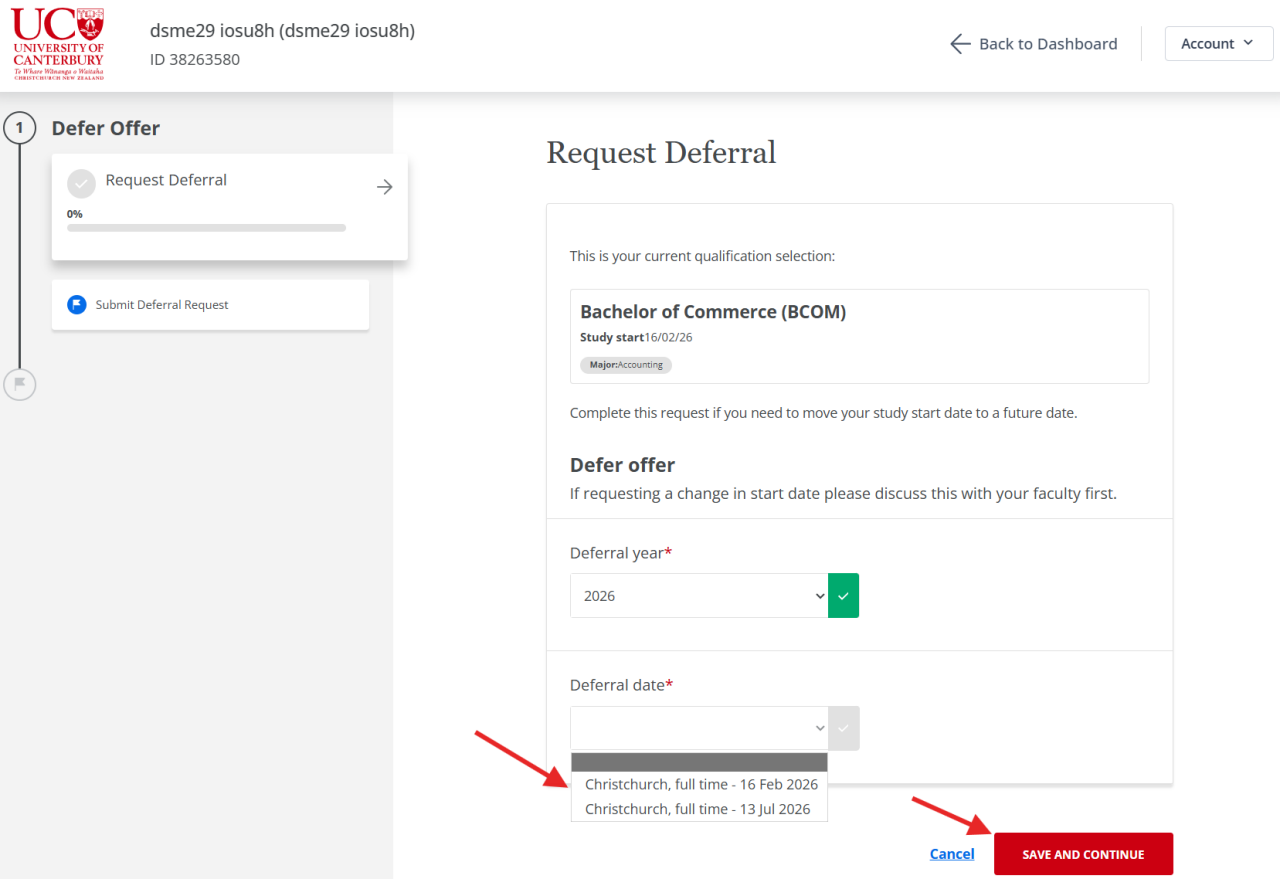
"Request Deferral" screen

Select the Deferral year from the Deferral date field. 

(Please ignore the irrelevant text under the title Defer offer: If requesting a change in start date please discuss with your faculty first.)

Select the Deferral date and then click the Save and Continue button. The Submit Deferral Request screen will display next.


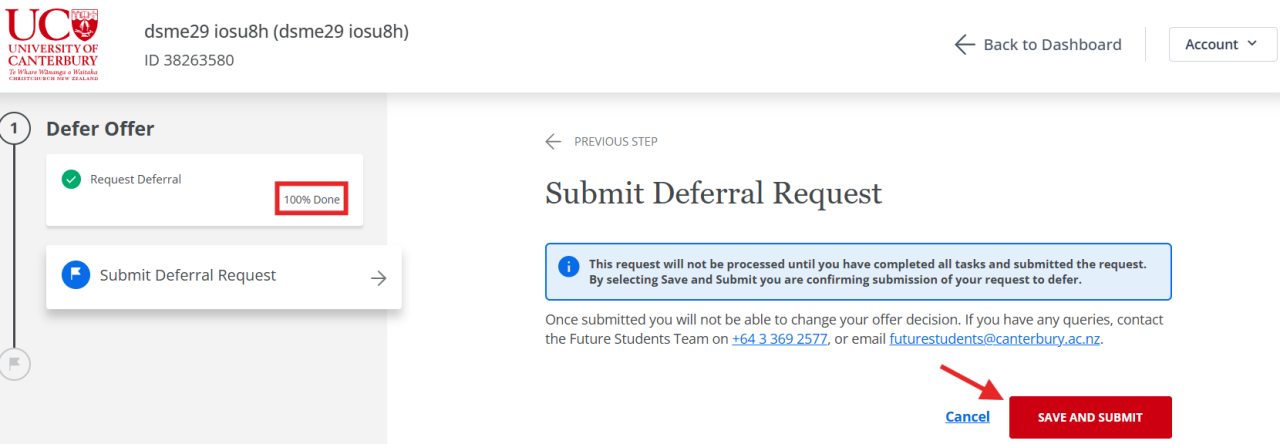
"Submit Deferral Request" screen

When you click the Save and Submit button, you will return to the dashboard. 

Please note when you start a deferral request, this is also reflected in myUC for your student. Both connectUC and myUC will display any changes of status. 

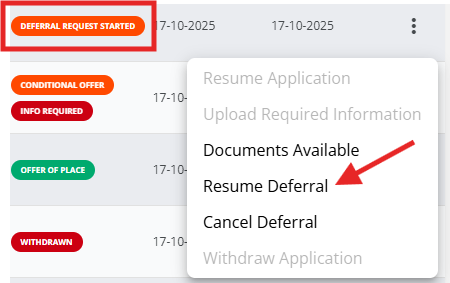
If you have not completed the Request Deferral AND click Cancel, the status of the application is now "Deferral request started" and the application will not progress any further until you complete the deferral request by clicking the "Resume Deferral" action button.

If you want to cancel the whole deferral request, click Cancel, return to the dashboard, and then click "Cancel Deferral" - your status pill will return to the previous offer status. 


"Deferral Requested" Status Update

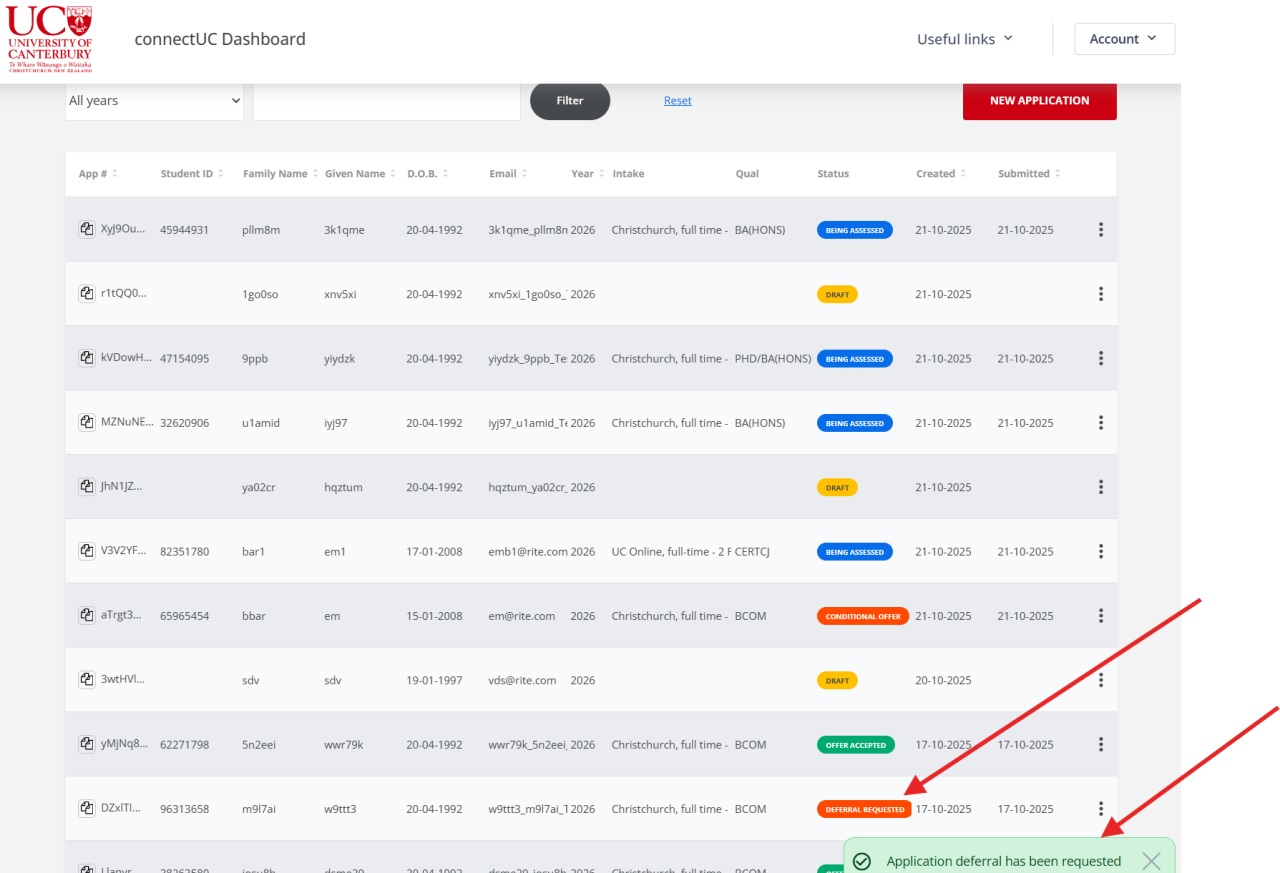
If you have successfully submitted the deferral request, you will see the status pill updated to "Deferral Requested" and a success message "Application deferral has been requested" displayed on dashboard. 

A Deferral Request Email will be sent to both agent and student. The deferral request is processed by UC staff. Another deferral cannot be requested until this request has been processed. 


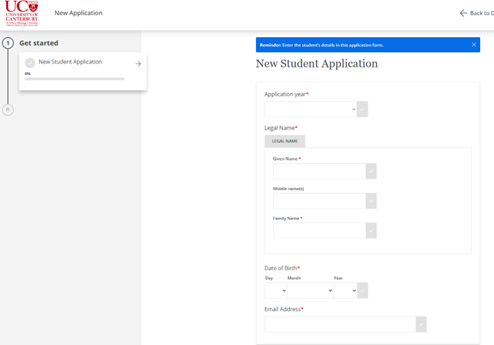
New application

For “Application year,” please ensure to select the year when your student will start their study. If you select 2027, for example, this will show all programme options currently available for 2027.

Fill in the student’s genuine email address, not the agency email address as this will cause an error in the system.


"Info Required" pop-up message

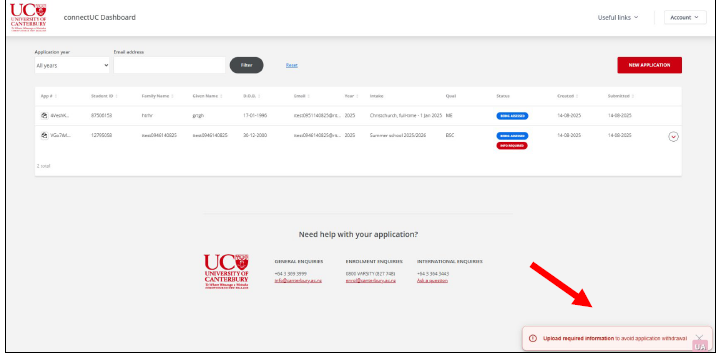
When one or more applications have a status of “Info Required,” a pop-up message will display on the bottom right of the dashboard when you log in to connectUC (recruitment agents only).

This message will remain on the screen until the "Info Required" has been supplied for all applicants.


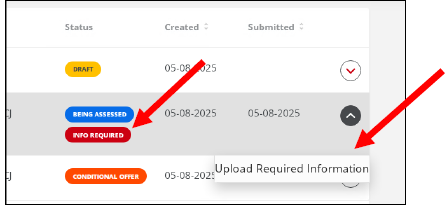
"Info Required" pill

This pill now displays in the “Status” column (recruitment agents only).

When the chevron is clicked, you will now see “Upload Required Information.” You can submit the additional documents by clicking on the "info Required" pill or the "Upload Required Information" chevron.


"Supplied" Pill

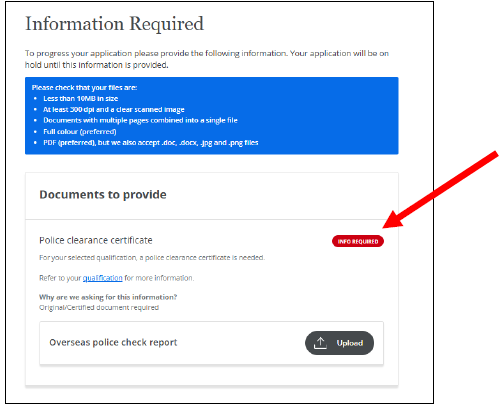
When you select the action "Info Required" or “Upload Required Information,” you will be directed to the Information Required page where there is a red status pill of “Info Required” next to the document that UC has requested. 

Once the document has been successfully uploaded the status pill changes to a green “Supplied” status (recruitment agents only). Note the red "Info Required" pill does not change to green on the dashboard and will remain there until it is assessed by Admission.


Privacy Preferences

By clicking "Accept All Cookies", you agree to the storing of cookies on your device to enhance site navigation, analyse site usage, and assist in our marketing efforts.